 HandyCub
 OtterPaste · Clipboard Manager for Mac
The clipboard history your Mac is missing
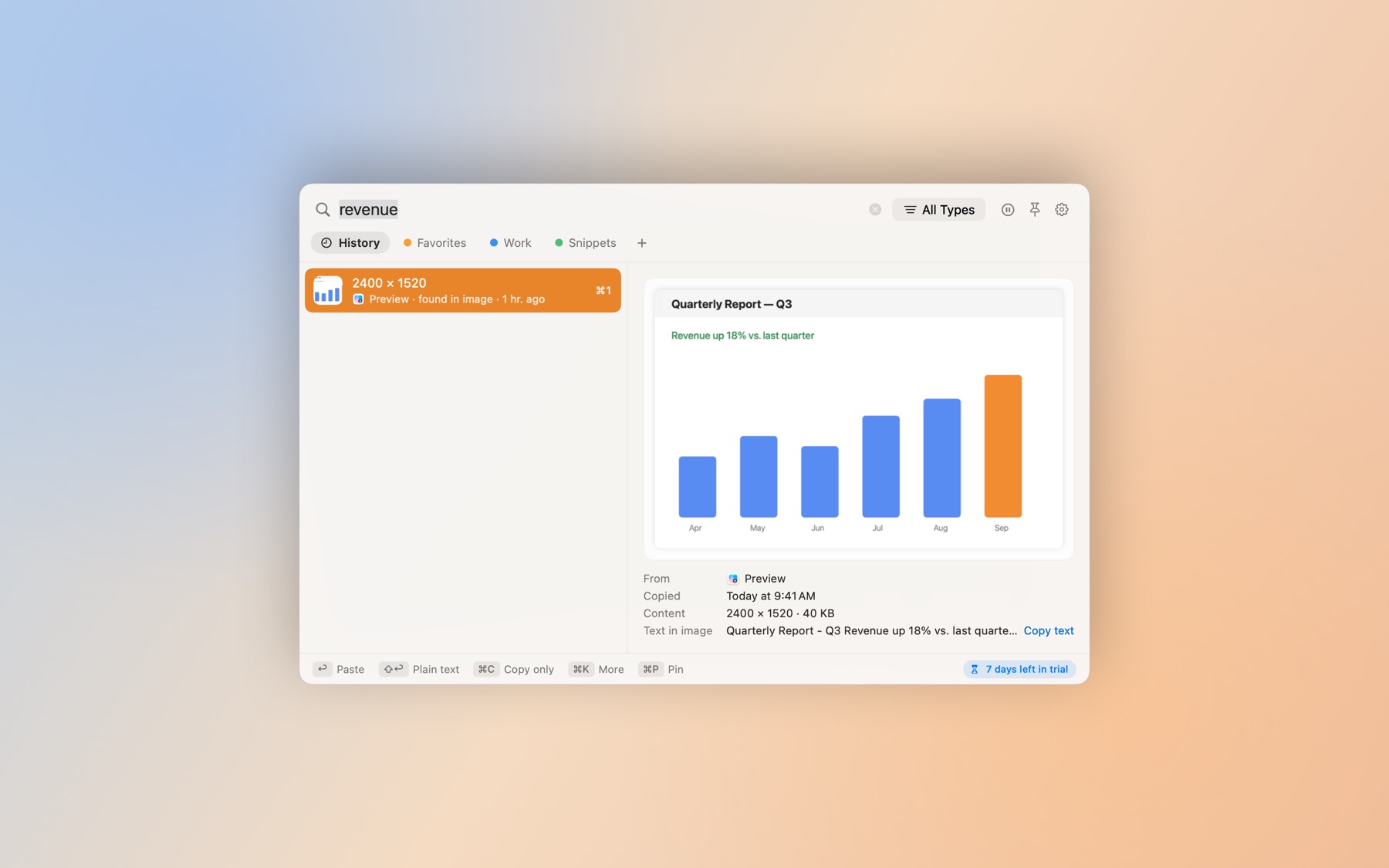
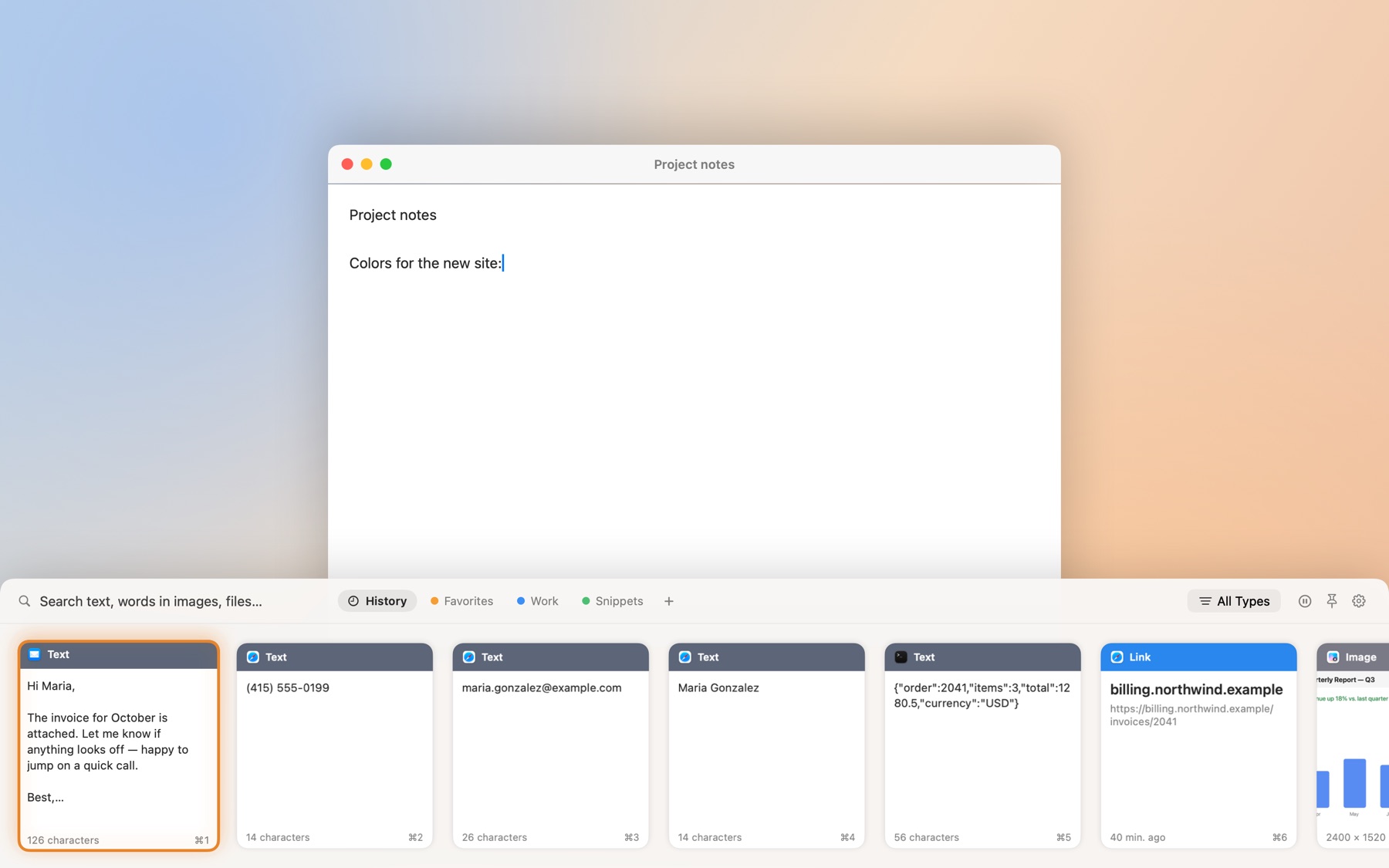
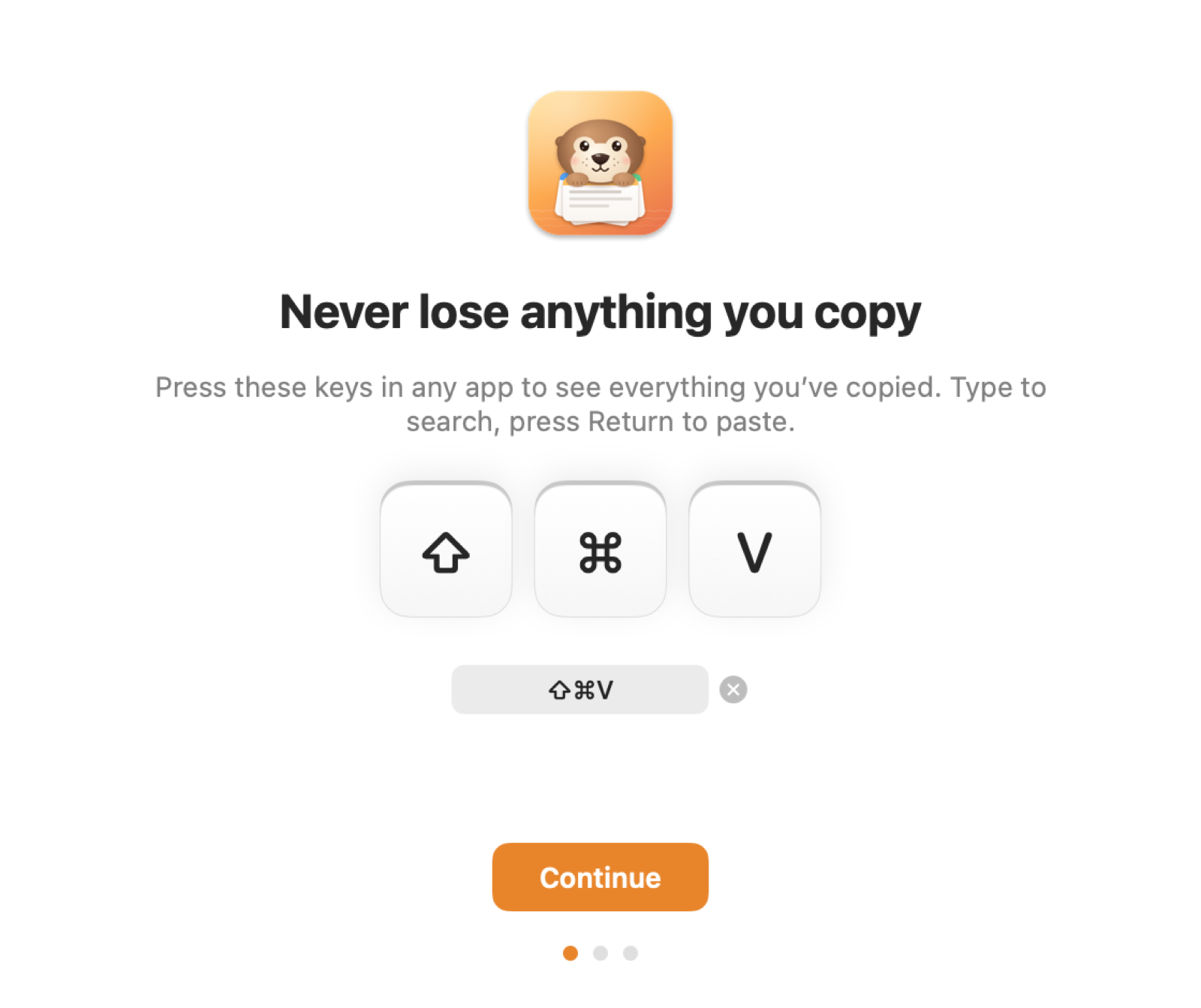
OtterPaste remembers the text, links, images, files and colors you copy. Press ⇧⌘V in any app, type a few letters, and press Return to paste — even words inside screenshots are searchable.
$4.99 one-time · no subscription
Type to find anything
Search all your history as you type, including the words inside screenshots and images.
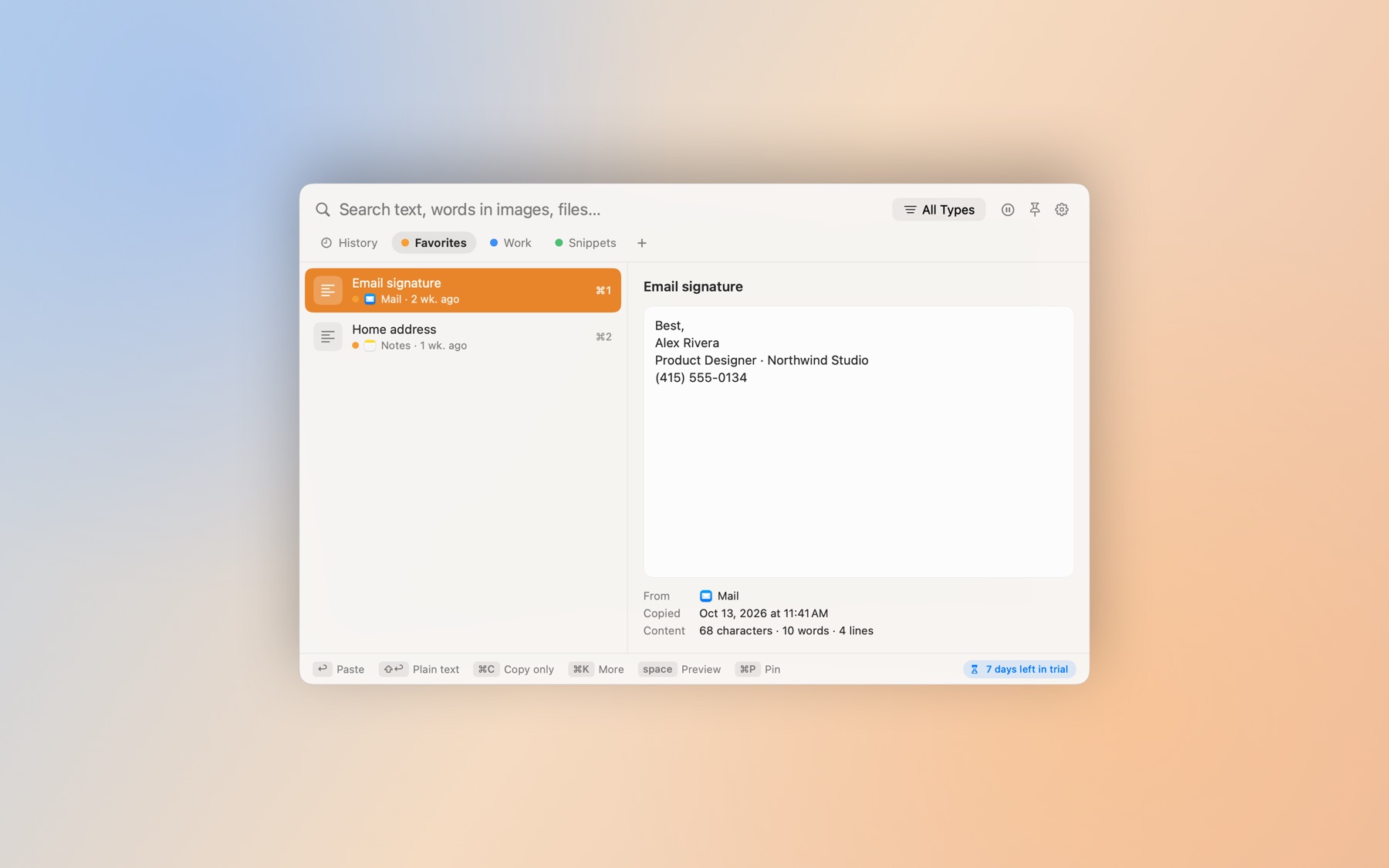
Pin what you use often
Keep addresses, replies and snippets in color-coded pinboards. Pinned clips never expire.
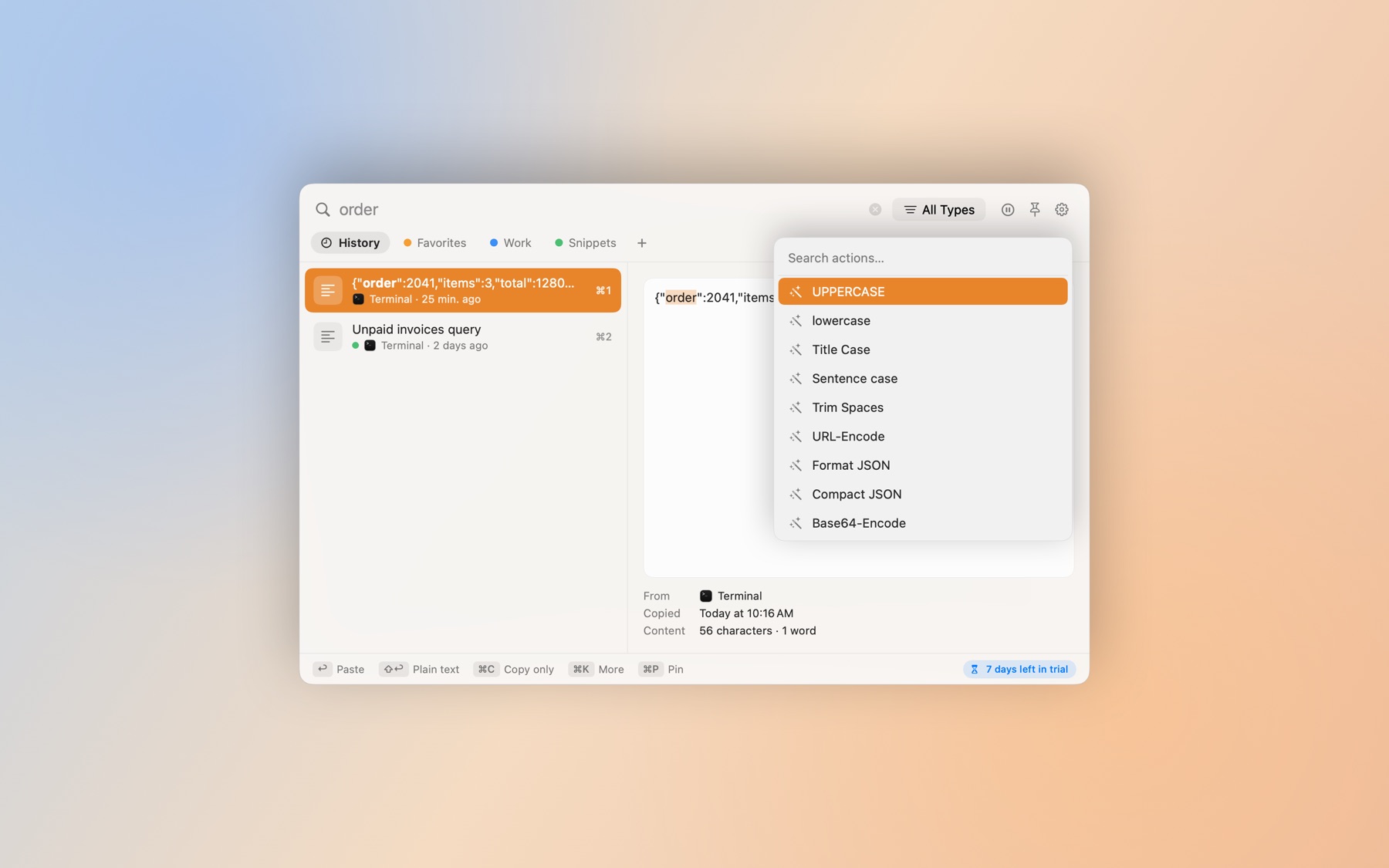
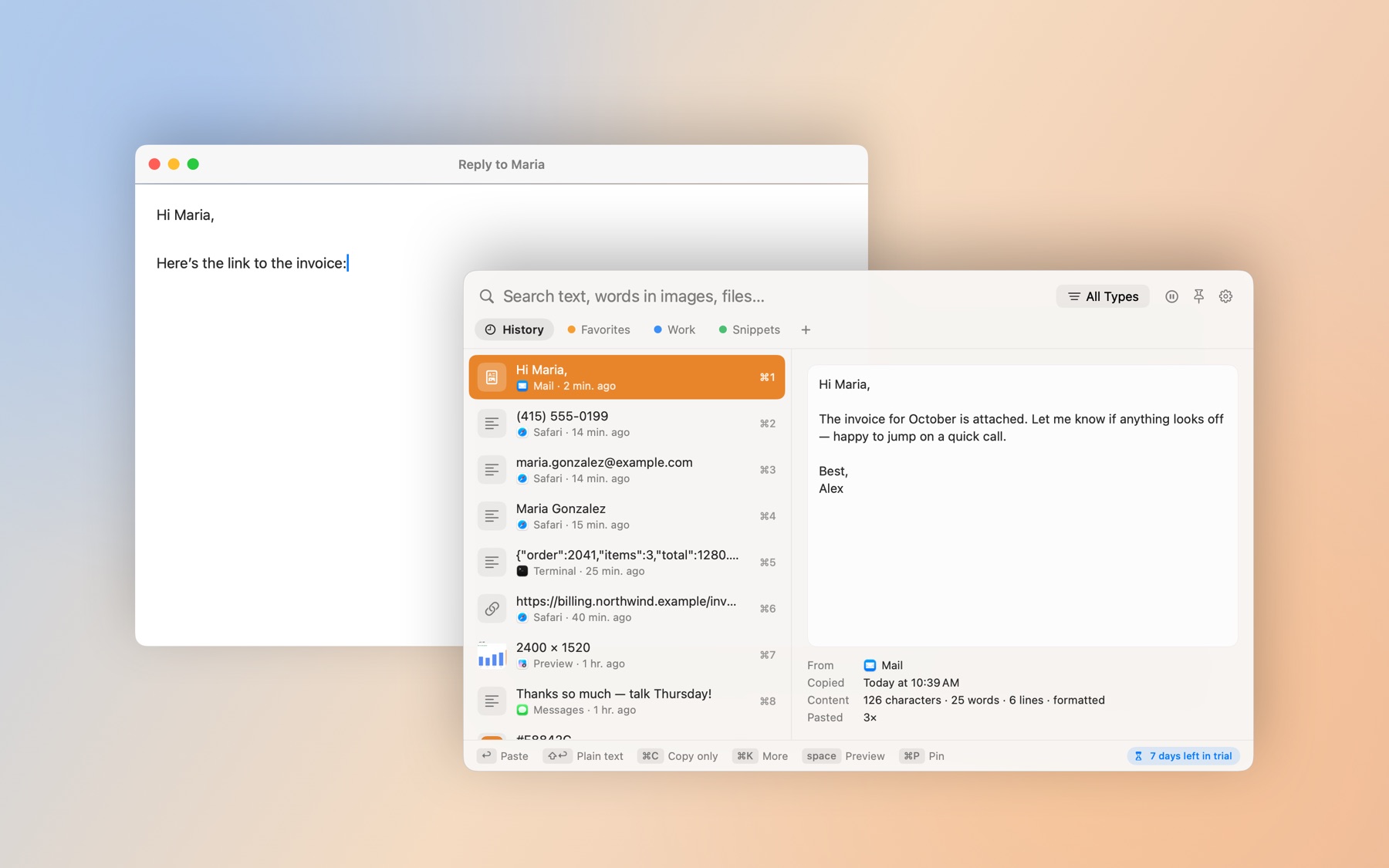
Paste as plain text
⇧Return drops the formatting. ⌘K pastes as UPPERCASE, one line, formatted JSON, clean links and more.
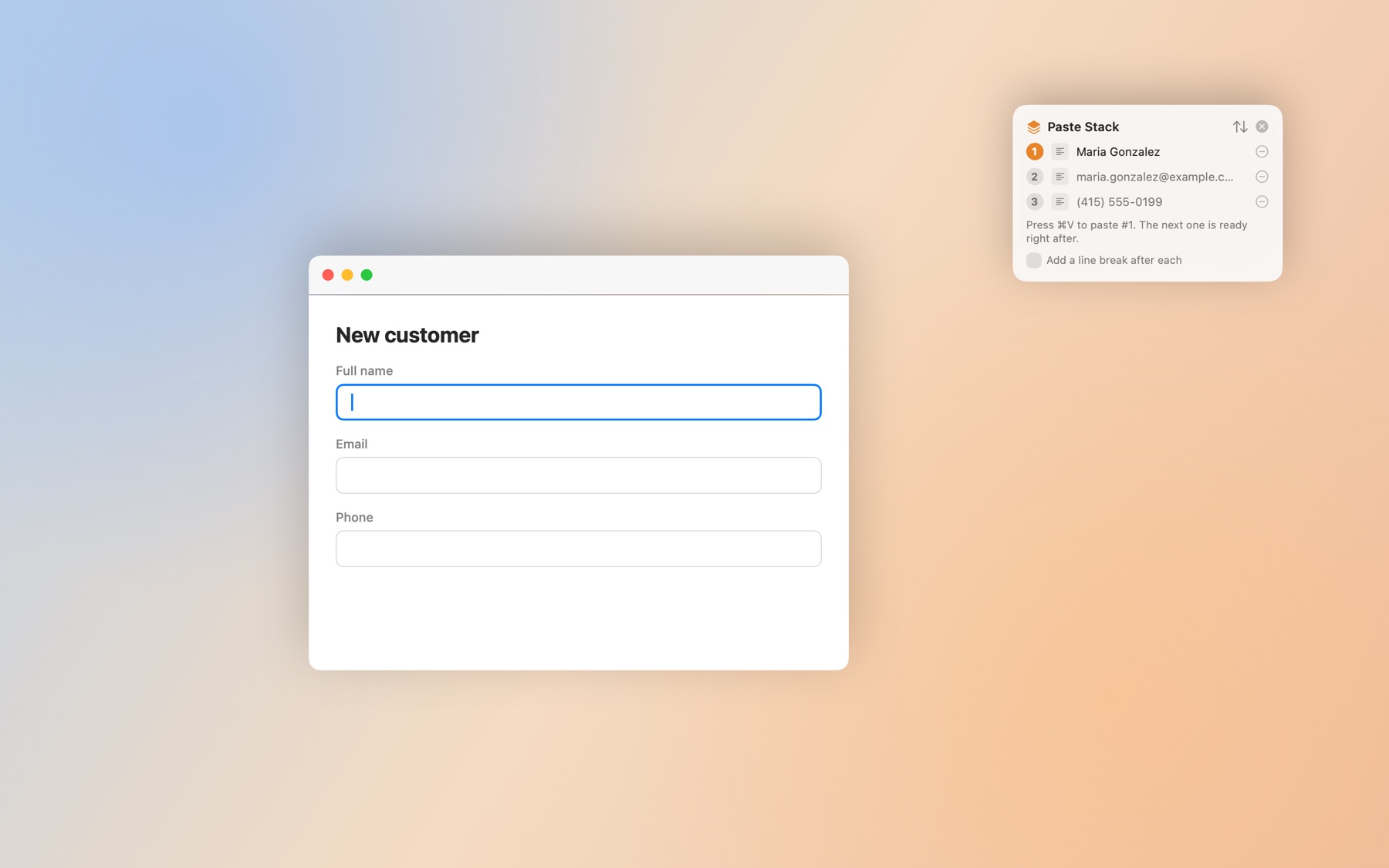
Paste Stack
Copy several things, then press ⌘V again and again — they come out in order. Great for forms.
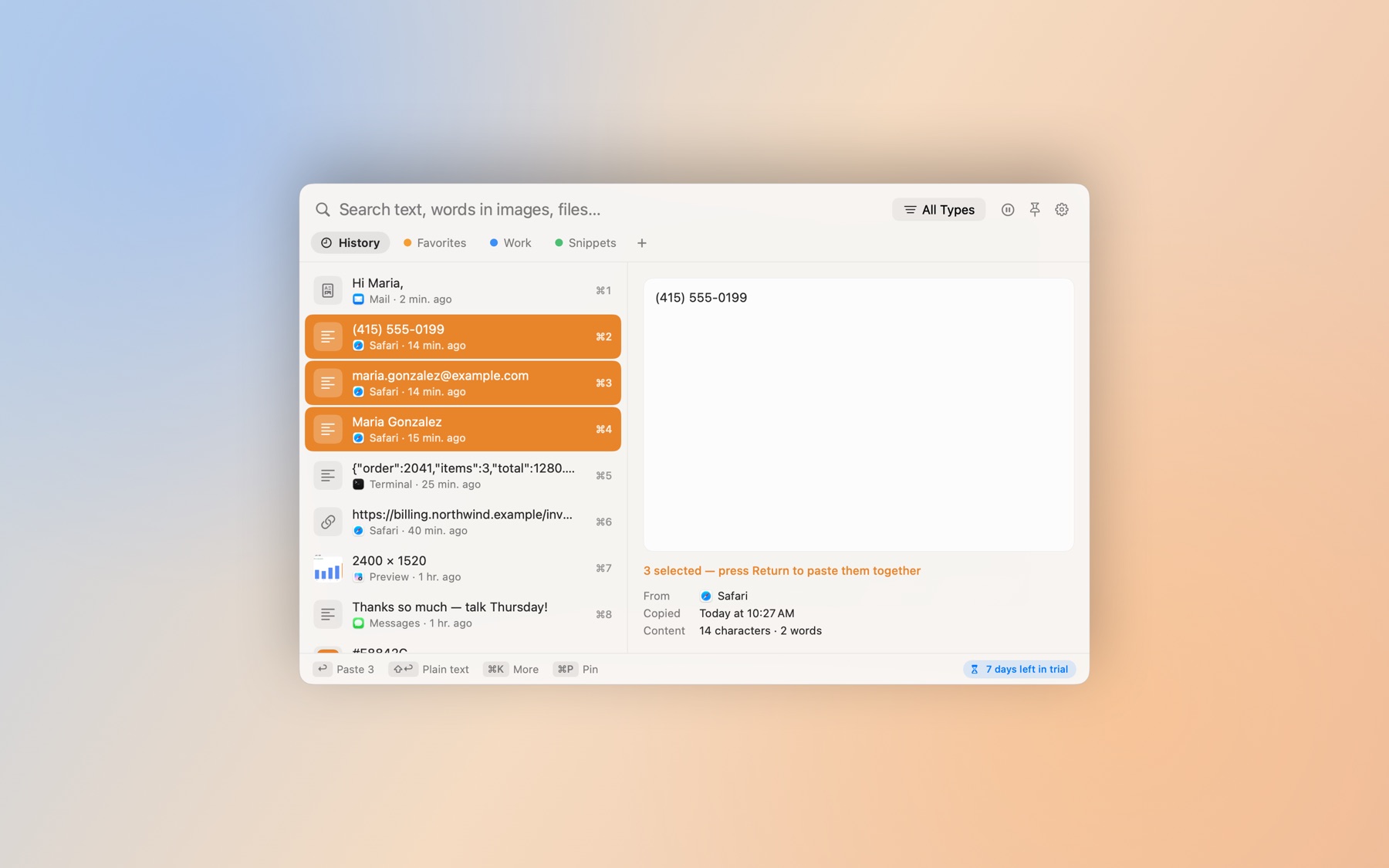
Paste several at once
Select a few clips and press Return to paste them together, or merge them with spaces or commas.
Private by default
Everything stays on your Mac. Password-manager entries and card numbers are skipped, and windows hide while you share your screen.
See it in action
Keyboard shortcuts
| Shortcut | What it does |
|---|---|
| ⇧⌘V | Open clipboard history |
| ↩ | Paste |
| ⇧↩ | Paste as plain text |
| ⌘1–⌘9 | Paste one of the first nine |
| ⌘K | All actions |
| ⌘P | Pin |
| ⌃⌘V | Paste Stack |
OtterPaste vs. what’s built into macOS
| Feature | Built into macOS | OtterPaste |
|---|---|---|
| Open with one shortcut | ⌘Space, then ⌘4 | ⇧⌘V (you can change it) |
| How long clips are kept | Up to 7 days | From 1 day to forever, set separately for text and images |
| Pin favorites | No | Yes, in color-coded pinboards |
| Paste into the app you’re using | Copy, then press ⌘V yourself | Return pastes right where you were typing |
| Search words inside images | No | Yes |
| Keep formatting or paste plain text | Formatting is removed | Your choice for every paste |
| Skip chosen apps | No | Yes; password managers are skipped from the start |
| Paste several things in order | No | Paste Stack |
Getting started
- Download OtterPaste and open the file.
- Drag OtterPaste into your Applications folder, then open it.
- Use it free for 7 days. When you're ready, click Buy Now in the app. It unlocks on its own once you've paid.
Questions
Does OtterPaste upload what I copy?
No. Your history is stored only on your Mac. OtterPaste goes online only to check your license.
Why does it ask for Accessibility access?
So it can press ⌘V for you and paste right where you’re typing. Without it, OtterPaste copies the clip and you press ⌘V yourself.
How much does it cost?
Every feature is free for 7 days. After that it’s $4.99 once — no subscription and no account — for up to 3 of your Macs.
How does the free trial work?
Download OtterPaste and open it. You get every feature for 7 days, with no account and no card. When the trial ends, the app asks you to buy a license. Your files and settings stay put.
Is it a subscription?
No. You pay once and keep using it. Updates are included.
How many computers can I use it on?
Up to 3. You can see which ones are using your license in the app's settings, and remove one yourself when you switch computers, there or on the license page.
Do I need to type in a license key?
Not if you buy from inside the app: it unlocks on its own a few seconds after you pay. If you buy on this website, we'll show your key right after checkout. Paste it into the app and you're set.
I lost my license key.
Find the receipt Paddle emailed you, copy the transaction ID (it starts with txn_), and look it up on the license page or in the app.
Can I get a refund?
Yes, a full refund within 14 days, no questions asked. See our Refund Policy.
Is there a Windows version?
It's on the way. The Mac version comes first.