 HandyCub
 FennecMix · Per-App Volume Mixer
A volume mixer for Mac: set the volume of each app separately
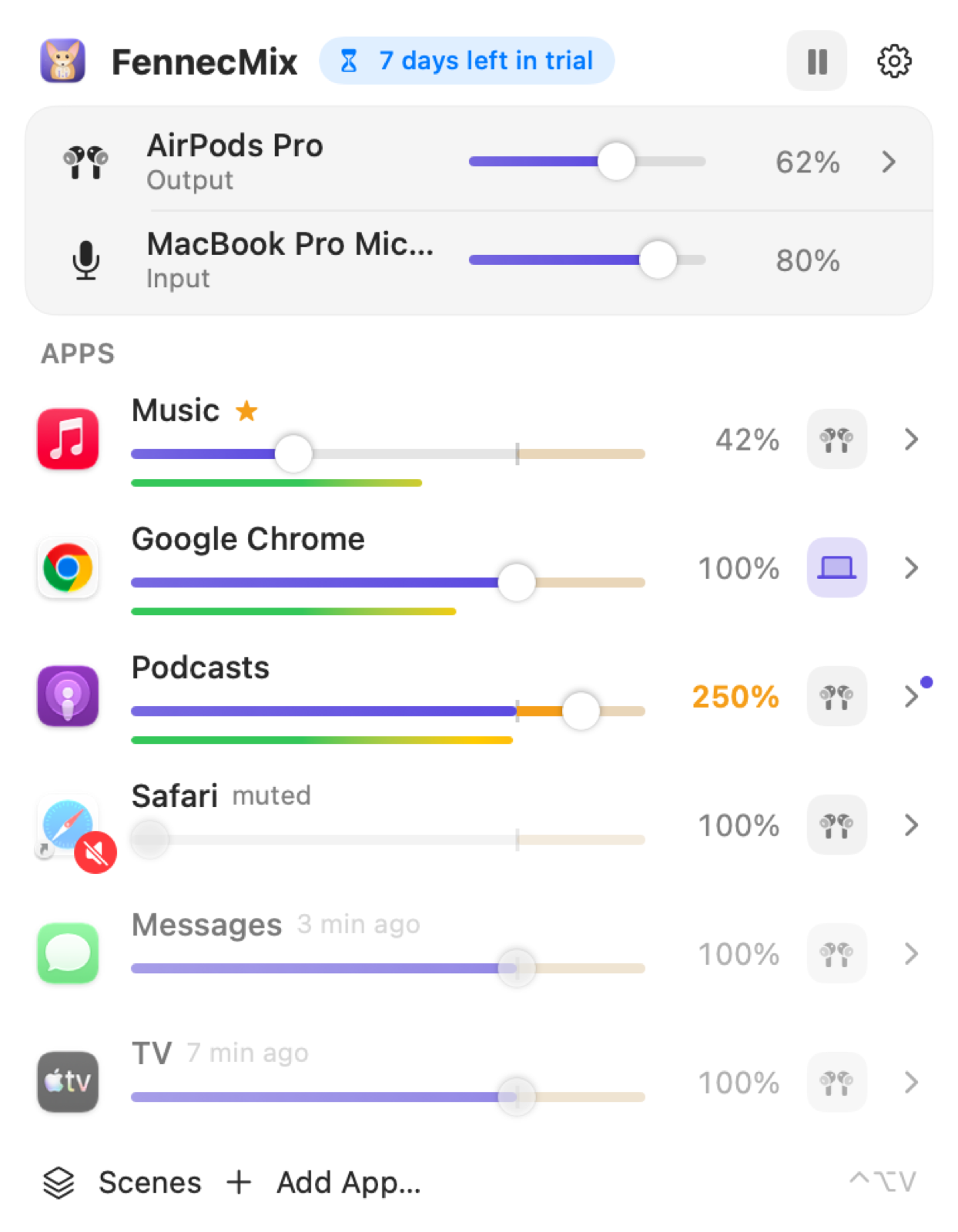
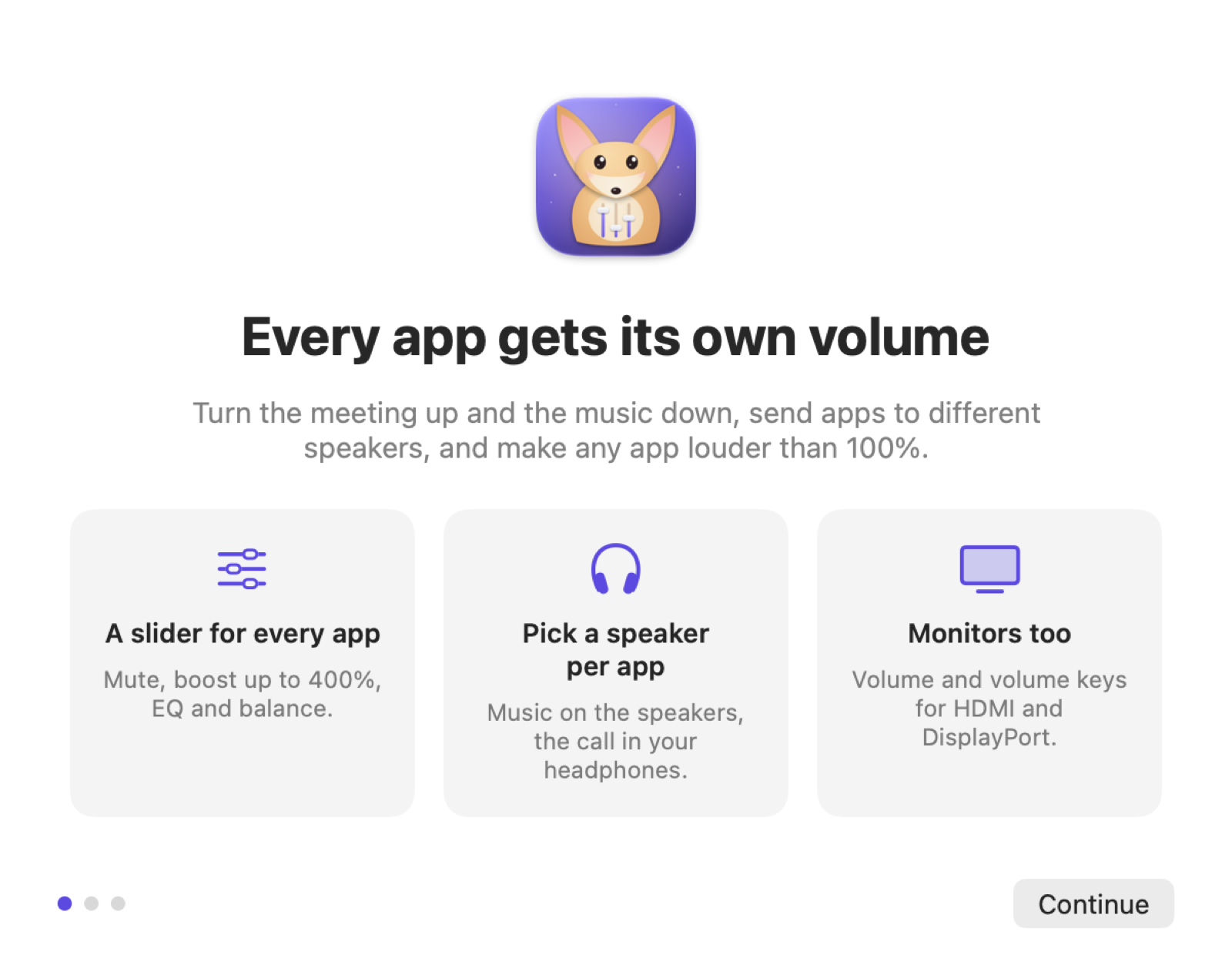
Turn the meeting up and the music down, send each app to its own speakers or headphones, and boost quiet apps up to 400%. No drivers, no admin password, built on Apple's own audio technology.
$4.99 one-time · no subscription
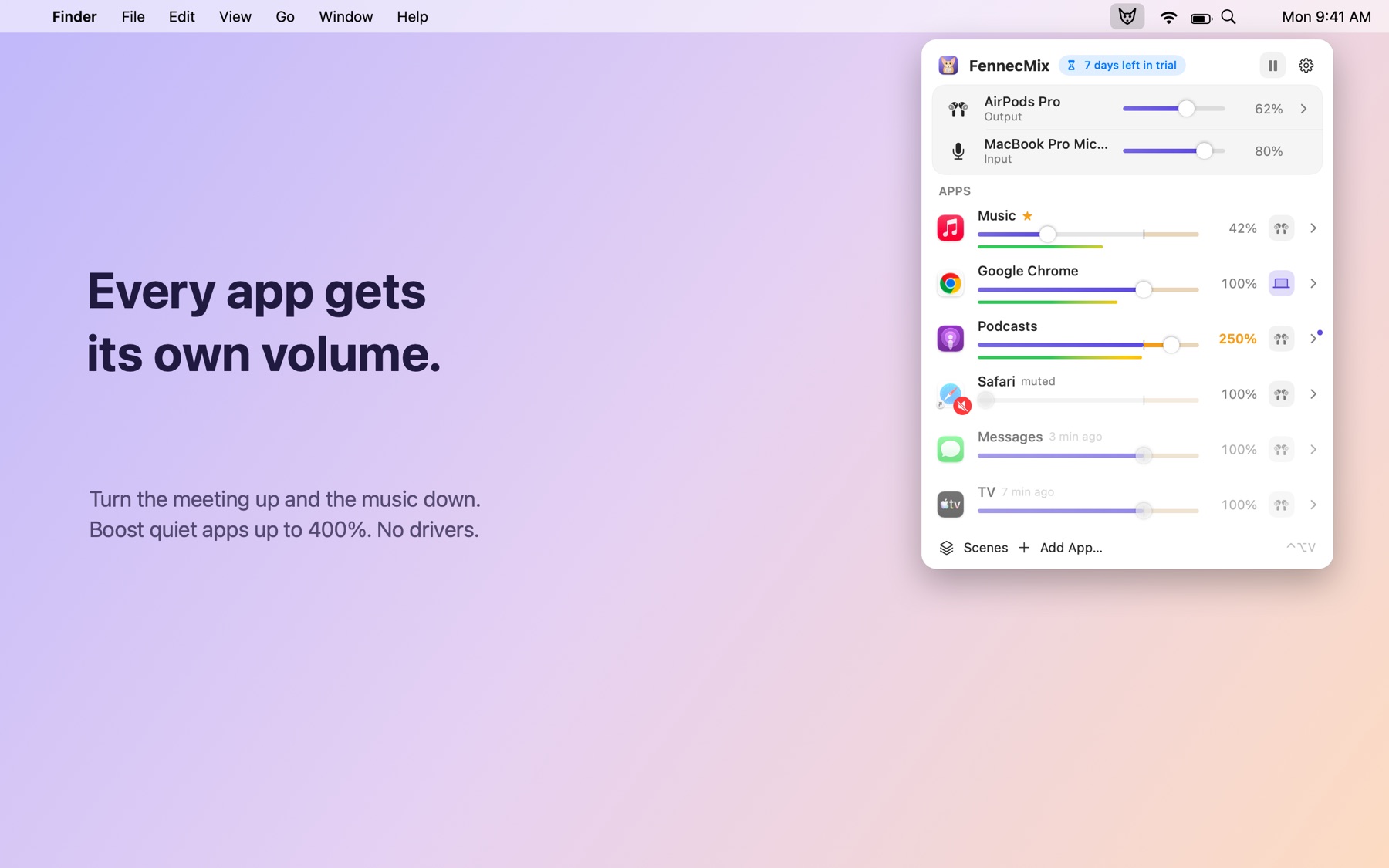
A volume slider for every app
Click an app's icon to mute it, drag to set its volume, or push it into the boost zone up to 400% without distortion.
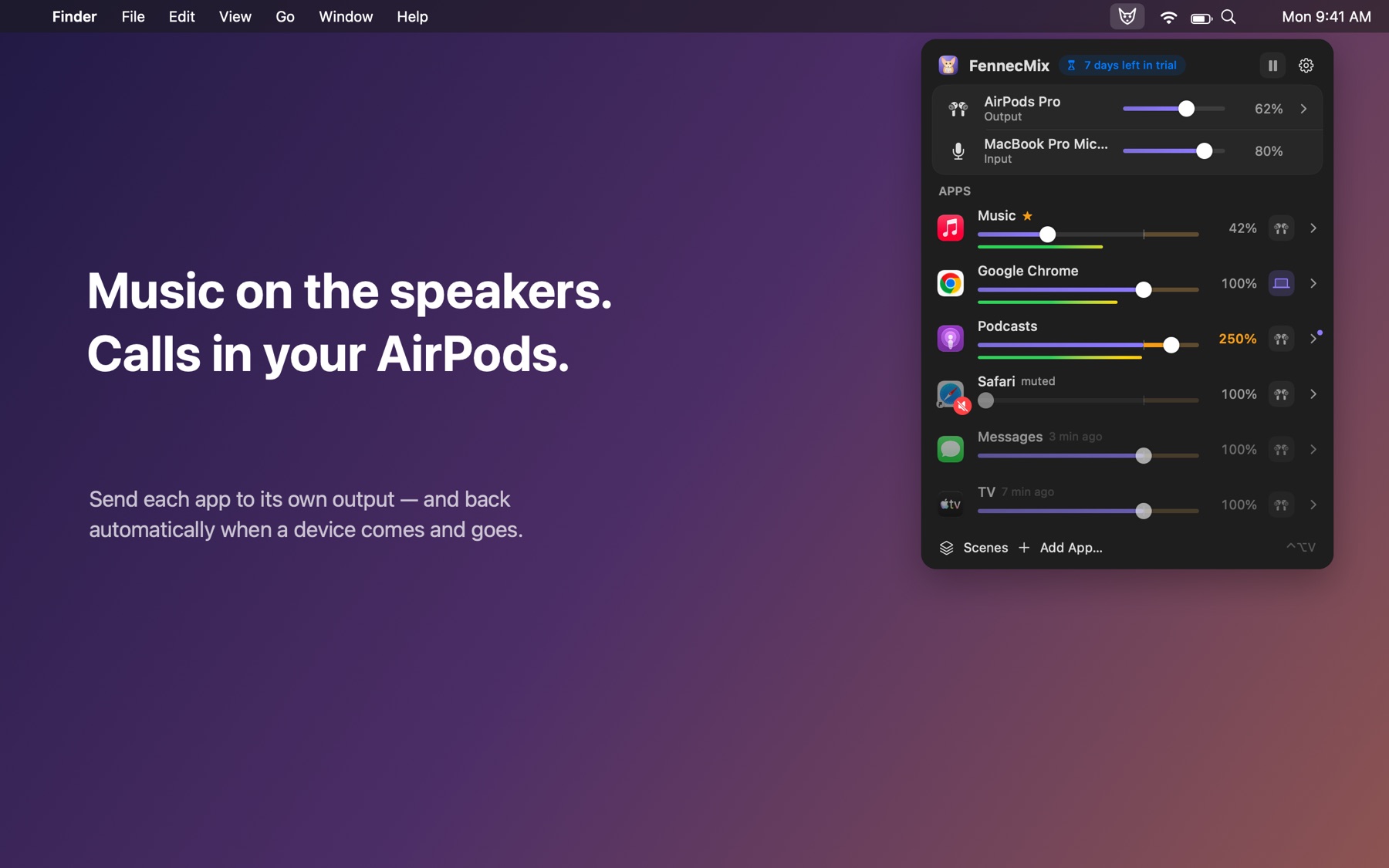
Each app on its own output
Music on the speakers, the call in your AirPods. If a device disconnects, the app follows your Mac until it's back.
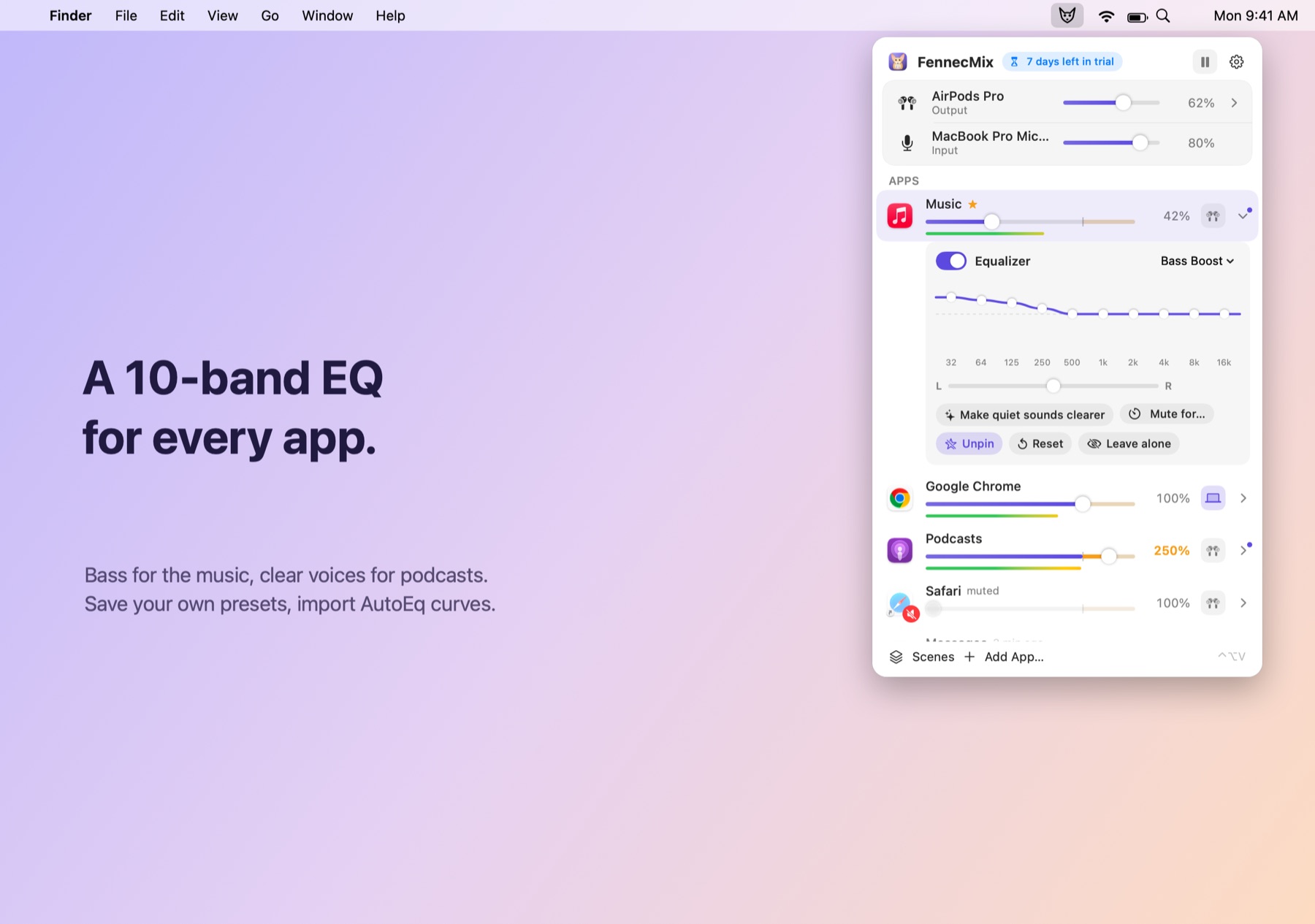
10-band EQ per app and per device
16 presets, your own presets, balance, and “Make quiet sounds clearer”. Import AutoEq headphone correction files.
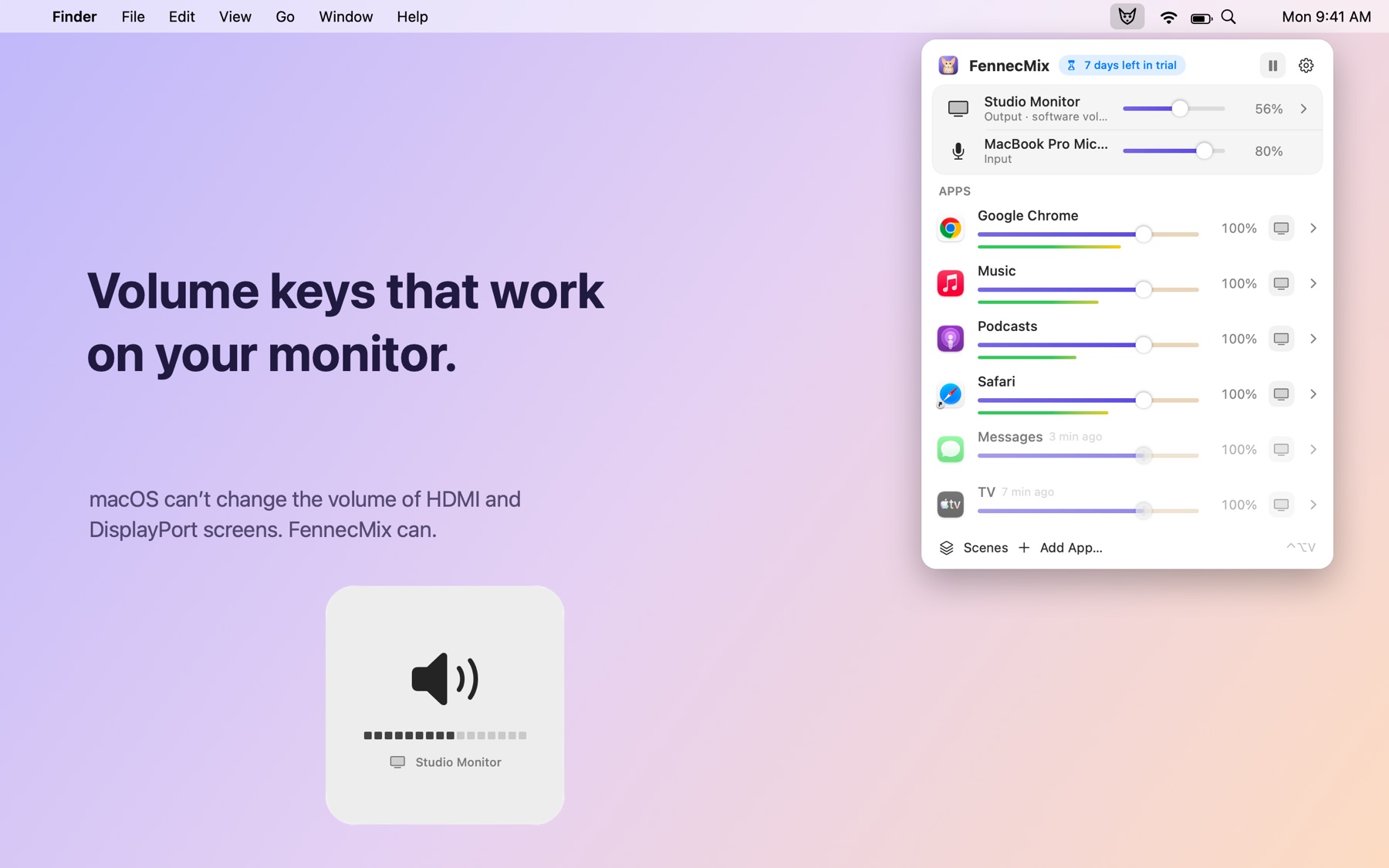
Volume keys for your monitor
HDMI and DisplayPort monitors get a working volume slider, and the keyboard volume keys work too.
Scenes and shortcuts
Save every app's volume as a scene like “Meeting” and switch with one click or a shortcut. Mute the app that's playing, or your microphone, from anywhere.
Hands off what you don't change
Apps you leave at 100% play exactly as before, so AirPods keep switching and calls stay clear. Nothing is recorded or sent anywhere.
See it in action
Keyboard shortcuts
| Shortcut | What it does |
|---|---|
| ⌃⌥V | Open the mixer |
| ↑ ↓ | Choose an app |
| ← → | Change its volume (⇧ for fine steps) |
| Space | Mute or unmute |
| Type a number + Return | Set an exact volume |
| ⌘1–⌘9 | Jump to an app |
FennecMix vs. what’s built into macOS
| Feature | Built into macOS | FennecMix |
|---|---|---|
| Separate volume for each app | No, one volume for everything | Yes, 0–400% |
| Send an app to a different output | No | Yes |
| Equalizer | No | 10 bands per app and per device |
| Volume keys on HDMI / DisplayPort monitors | Don't work | Yes |
| Boost quiet apps above 100% | No | Up to 400%, with a limiter |
| Mute one app for a minute | No | 30 s to 5 min, then fades back in |
| Volume limit to protect your ears | No | Per device |
Getting started
- Download FennecMix and open the file.
- Drag FennecMix into your Applications folder, then open it.
- Use it free for 7 days. When you're ready, click Buy Now in the app. It unlocks on its own once you've paid.
Questions
Does FennecMix install a driver or record my audio?
No driver and no admin password. It uses the System Audio Recording permission that macOS requires to change other apps' sound, only for apps you've adjusted. Nothing is saved or sent anywhere.
Which Macs does it run on?
macOS 14.2 or later, on Apple silicon and Intel Macs.
How does the trial work?
All features are free for 7 days. After that, buy once to keep using it on up to 3 Macs. No account, no subscription.
How does the free trial work?
Download FennecMix and open it. You get every feature for 7 days, with no account and no card. When the trial ends, the app asks you to buy a license. Your files and settings stay put.
Is it a subscription?
No. You pay once and keep using it. Updates are included.
How many computers can I use it on?
Up to 3. You can see which ones are using your license in the app's settings, and remove one yourself when you switch computers, there or on the license page.
Do I need to type in a license key?
Not if you buy from inside the app: it unlocks on its own a few seconds after you pay. If you buy on this website, we'll show your key right after checkout. Paste it into the app and you're set.
I lost my license key.
Find the receipt Paddle emailed you, copy the transaction ID (it starts with txn_), and look it up on the license page or in the app.
Can I get a refund?
Yes, a full refund within 14 days, no questions asked. See our Refund Policy.
Is there a Windows version?
It's on the way. The Mac version comes first.