 HandyCub
 GeckoScroll · Mouse Utility
Smooth scrolling for any mouse on Mac, with its own scroll direction
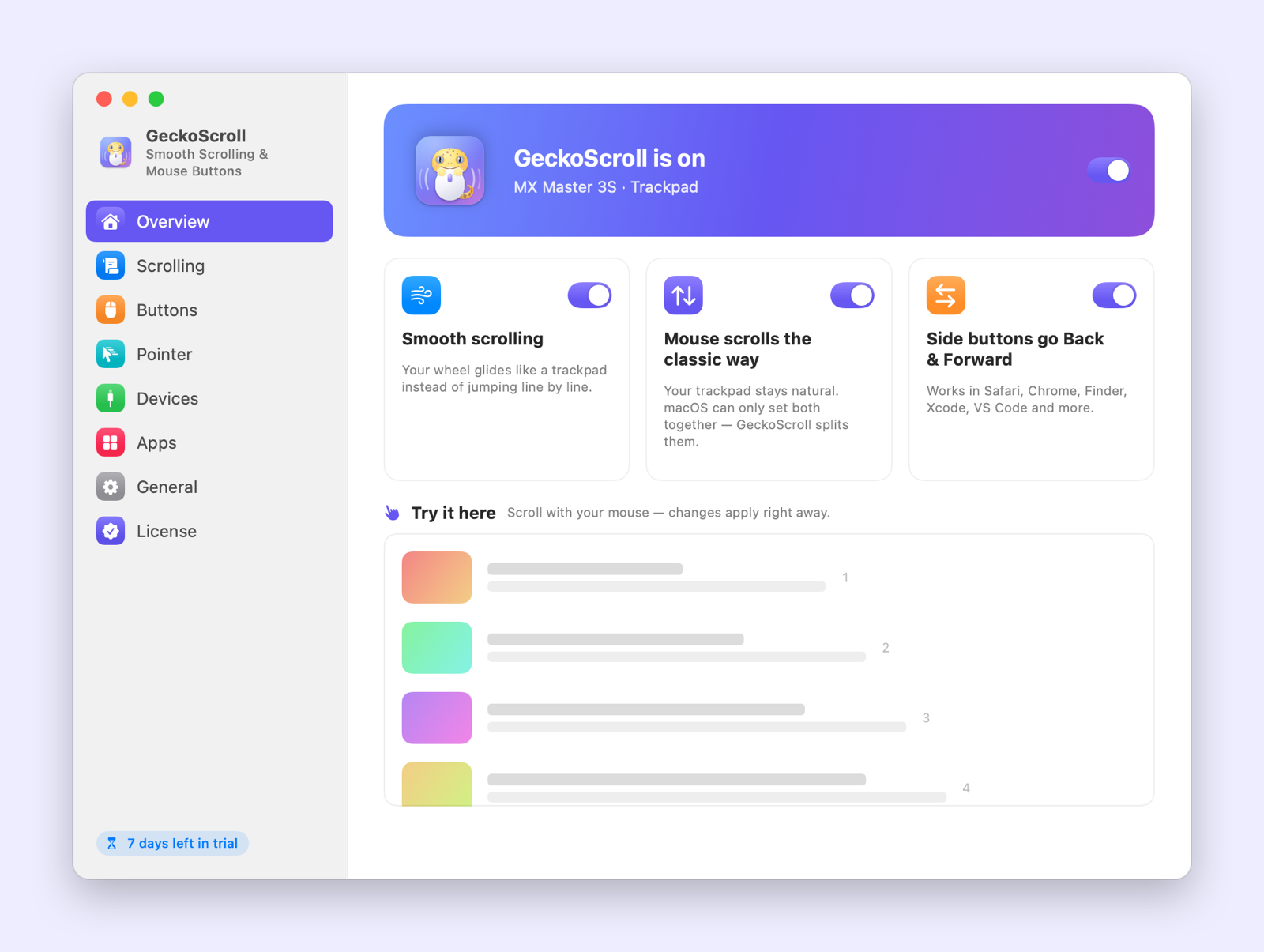
GeckoScroll makes any mouse wheel glide like a trackpad, lets your mouse and trackpad scroll in their own directions, and turns the side buttons into Back and Forward. All three are on the moment you allow one permission — no setup.
$4.99 one-time · no subscription
Smooth scrolling for any mouse
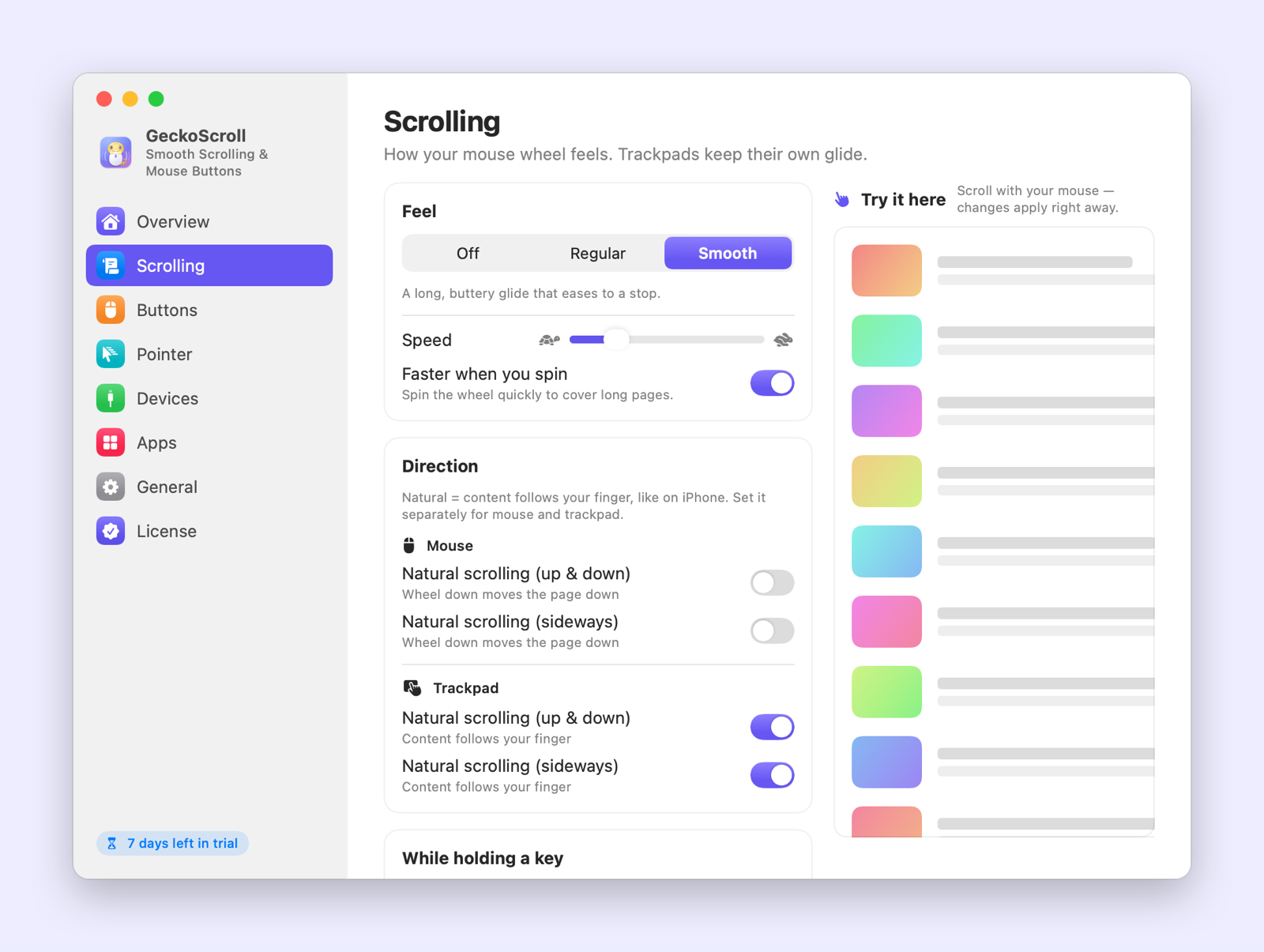
The wheel glides and eases to a stop instead of jumping line by line. Choose Off, Regular or Smooth, set the speed, and spin faster to cover long pages.
Separate scroll directions
Classic direction for your mouse, natural for your trackpad — or any mix, set separately for up/down and sideways.
Side buttons that just work
Back and Forward in Safari, Chrome, Finder and more, with the right shortcut picked automatically in Xcode and VS Code.
Hold, drag and scroll with buttons
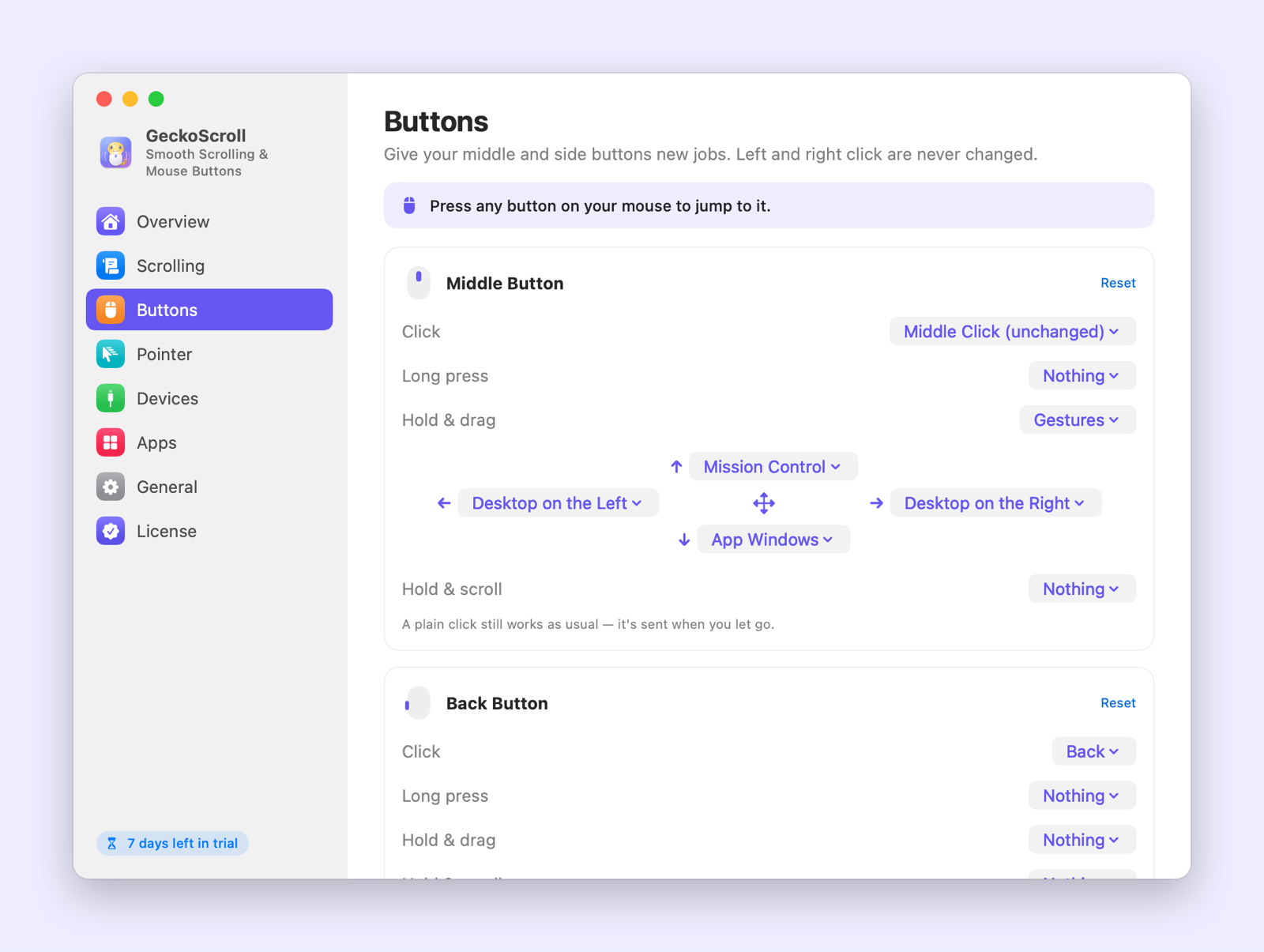
Hold the middle button and drag for Mission Control or to switch desktops, grab and scroll a page, or hold a button and turn the wheel to zoom, switch tabs or change the volume.
Pointer speed for your mouse only
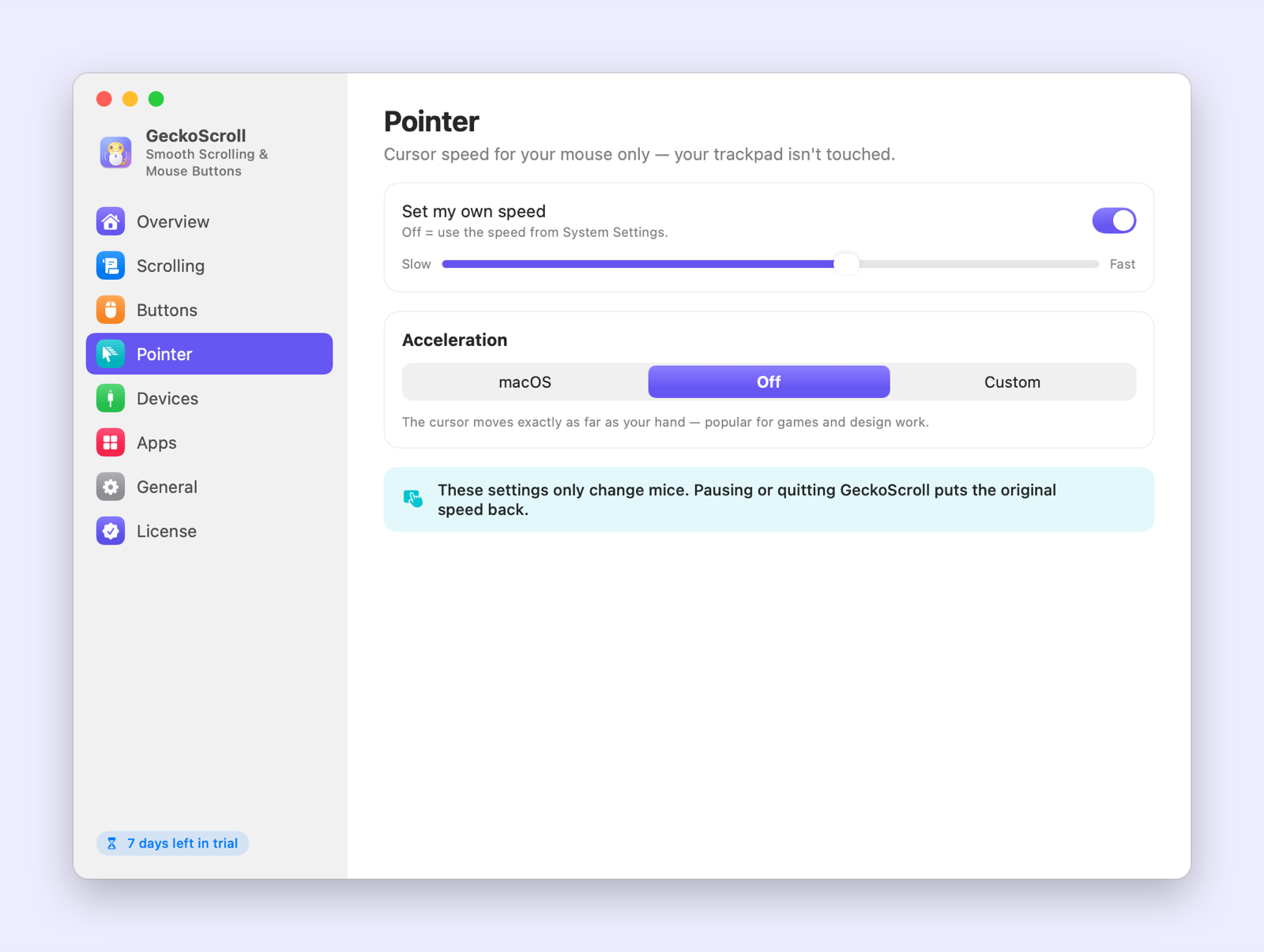
Set your own tracking speed or turn acceleration off for 1:1 movement. Your trackpad isn't touched.
Per-app and per-mouse settings
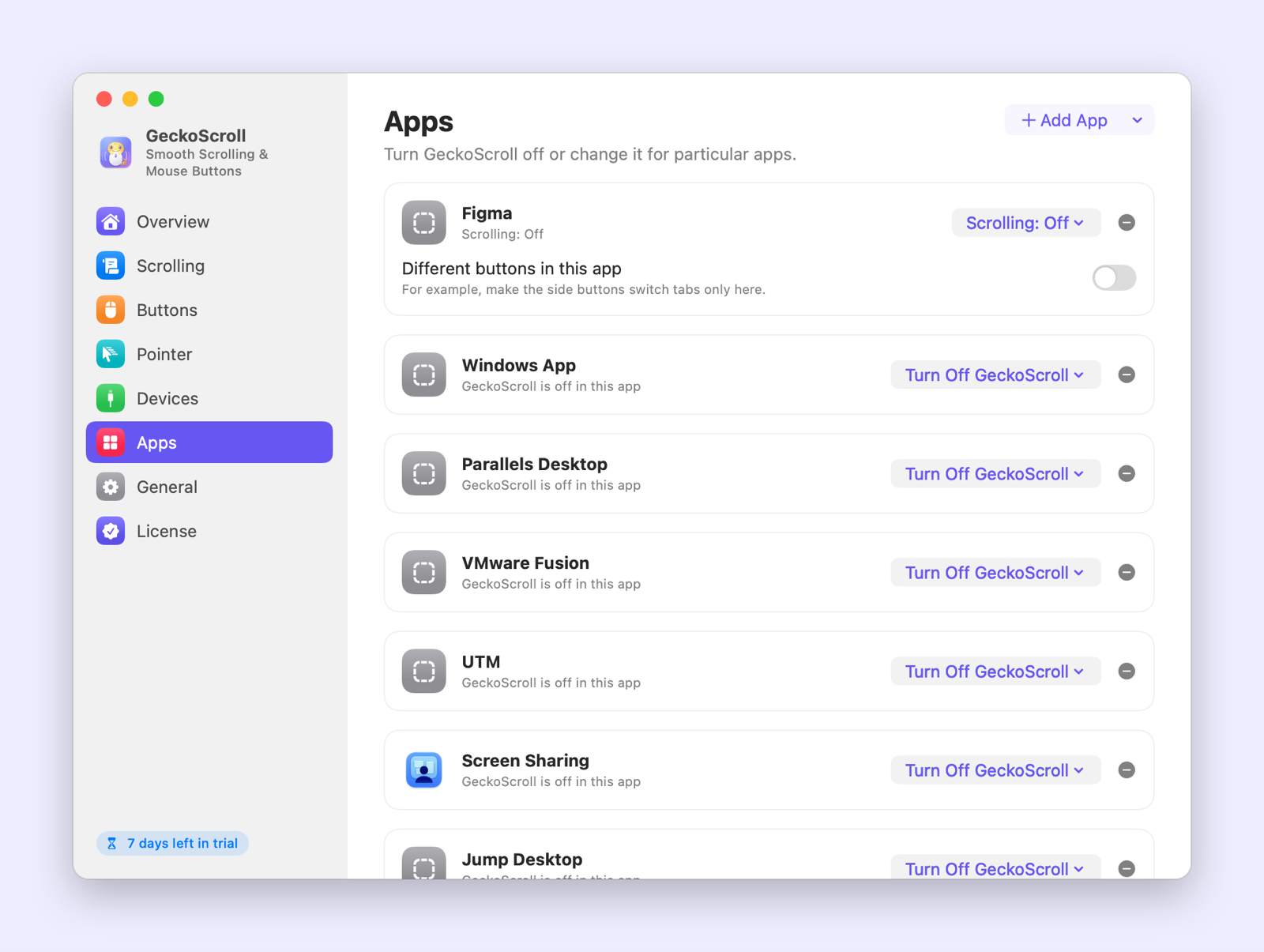
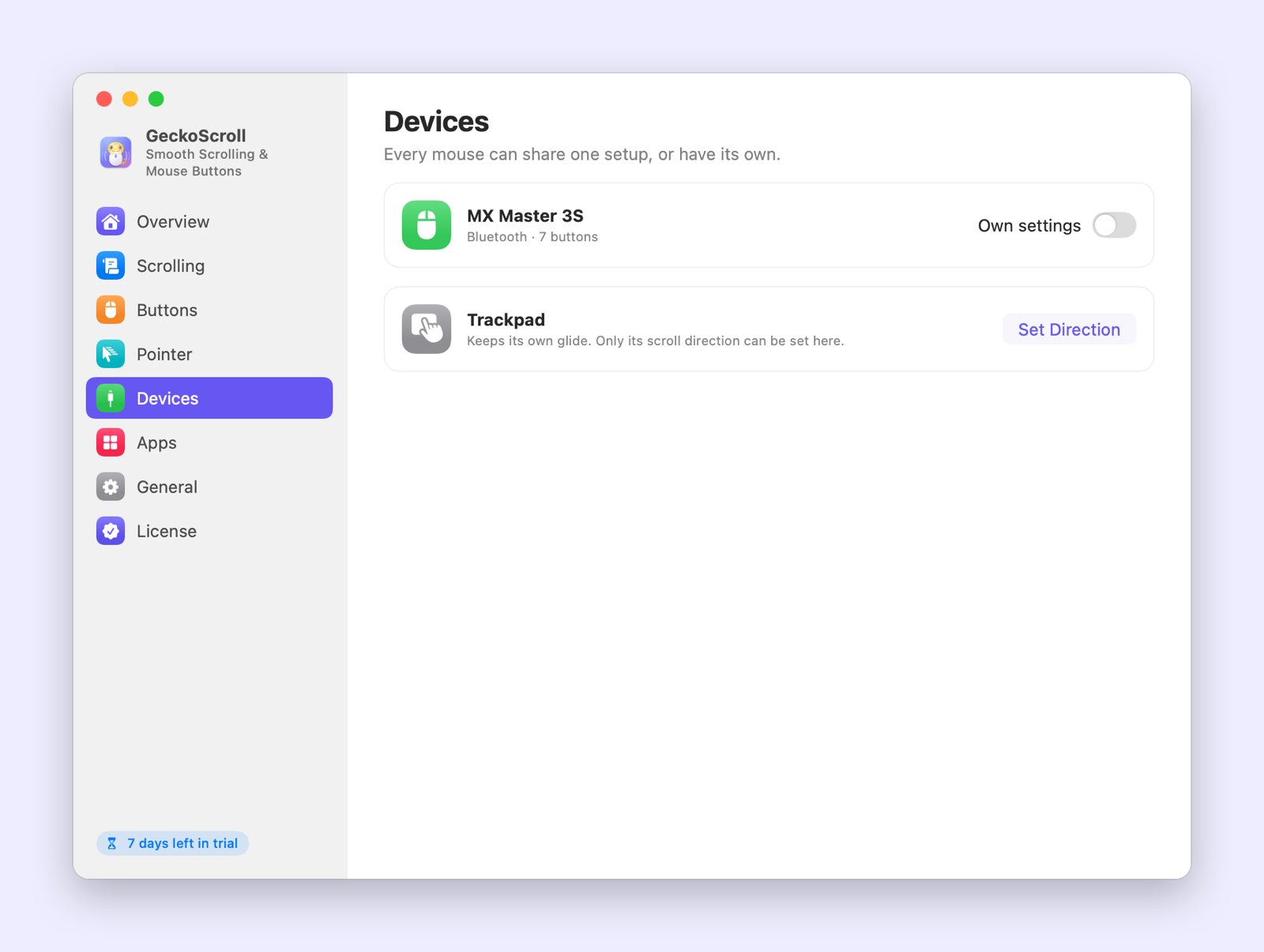
Turn GeckoScroll off or change it in specific apps, and give each mouse its own setup. Remote desktops and virtual machines are left alone by default.
See it in action
Keyboard shortcuts
| Shortcut | What it does |
|---|---|
| ⇧ + scroll | Scroll sideways |
| ⌥ + scroll | Scroll precisely |
| ⌃ + scroll | Scroll fast |
| ⌘ + scroll | Zoom in and out |
GeckoScroll vs. what’s built into macOS
| Feature | Built into macOS | GeckoScroll |
|---|---|---|
| Smooth scrolling with a regular mouse wheel | No, it jumps line by line | Yes, three feels to choose from |
| Different scroll direction for mouse and trackpad | No, one switch for both | Yes, also separate for sideways |
| Side buttons go Back and Forward | Only in some apps | In any app |
| Mission Control and desktops from mouse buttons | Apple mice only | Any mouse: hold and drag |
| Turn pointer acceleration off | Yes, for all mice at once | Yes, per mouse, or a custom amount |
| Different settings per app | No | Yes |
Getting started
- Download GeckoScroll and open the file.
- Drag GeckoScroll into your Applications folder, then open it.
- Use it free for 7 days. When you're ready, click Buy Now in the app. It unlocks on its own once you've paid.
Questions
Does it work with my Logitech or Razer mouse?
Yes. Scrolling and all standard buttons work with any USB or Bluetooth mouse. The thumb and gesture buttons on Logitech MX mice only talk to Logitech's own software, so no other app can see them. If Logi Options+ also smooths scrolling, turn that off there.
Will it change how my trackpad feels?
No. Your trackpad keeps its own glide. GeckoScroll only sets its scroll direction, and on first launch it keeps whatever direction you already use.
Why does it need a permission?
macOS only lets apps change scrolling and mouse buttons with the Accessibility permission (called Device Control and Data Access in macOS 27). GeckoScroll never reads what you type and only goes online to check your license.
How does the free trial work?
Download GeckoScroll and open it. You get every feature for 7 days, with no account and no card. When the trial ends, the app asks you to buy a license. Your files and settings stay put.
Is it a subscription?
No. You pay once and keep using it. Updates are included.
How many computers can I use it on?
Up to 3. You can see which ones are using your license in the app's settings, and remove one yourself when you switch computers, there or on the license page.
Do I need to type in a license key?
Not if you buy from inside the app: it unlocks on its own a few seconds after you pay. If you buy on this website, we'll show your key right after checkout. Paste it into the app and you're set.
I lost my license key.
Find the receipt Paddle emailed you, copy the transaction ID (it starts with txn_), and look it up on the license page or in the app.
Can I get a refund?
Yes, a full refund within 14 days, no questions asked. See our Refund Policy.
Is there a Windows version?
It's on the way. The Mac version comes first.