 HandyCub
 KoalaShot · Screenshot & Screen Recorder
The Mac screenshot tool for scrolling captures, OCR and GIF recording
Capture any part of your screen, mark it up, and share it in seconds. Record video or GIFs with sound. One shortcut to remember, zero setup.
$4.99 one-time · no subscription
Snap anything
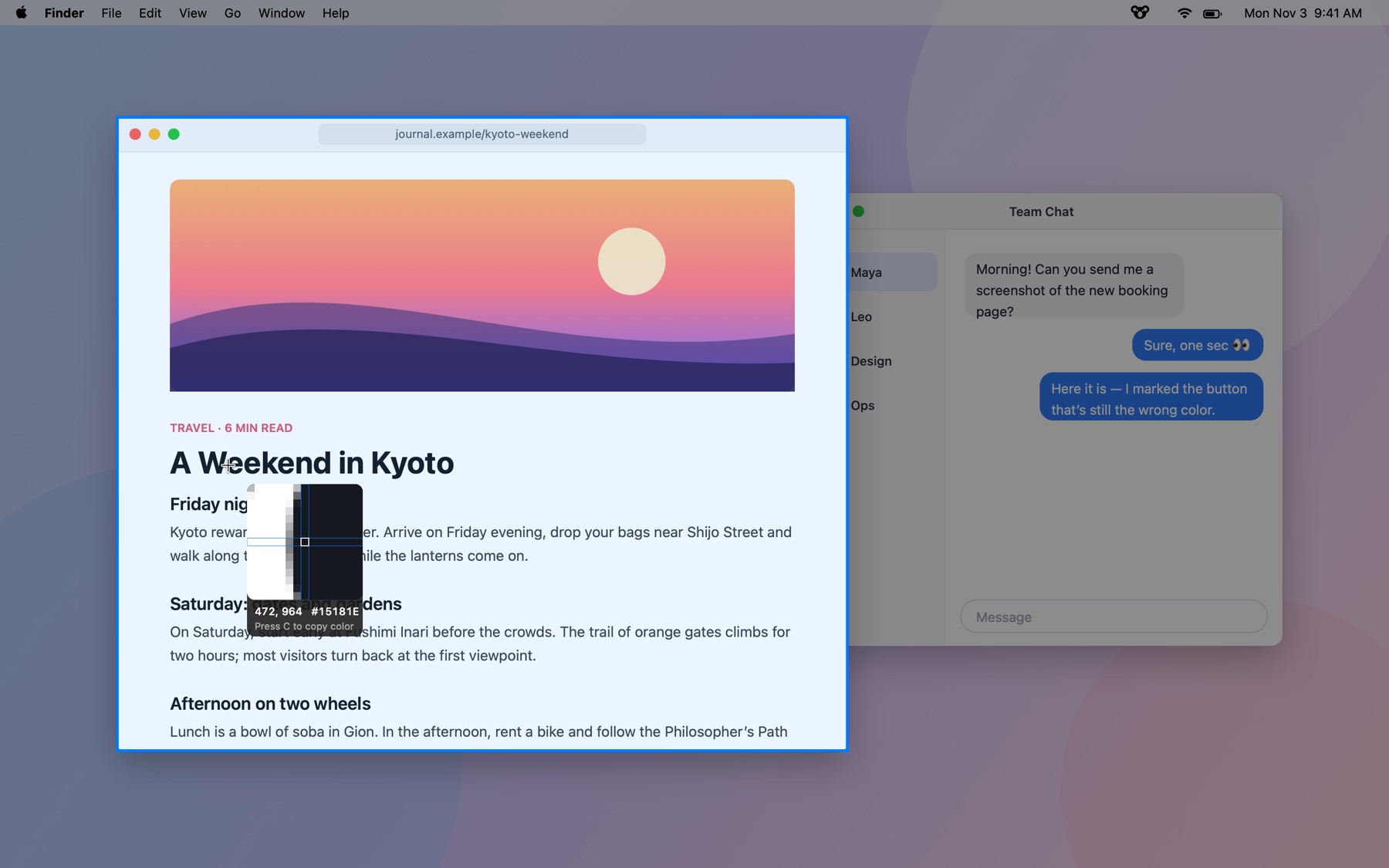
Press ⇧⌘1, then click a window or drag a region. The screen freezes so menus and hover states stay put.
Mark it up right there
Arrows, boxes, text, highlighter, blur, and numbered steps appear right under your selection. Press Return and it's copied.
Scrolling captures
Grab a whole web page or chat thread. KoalaShot stitches it as you scroll and ignores sticky headers.
Record your screen
Record a region or a window with system audio and mic, then turn it into an MP4 or a GIF in one click.
Pin and copy text
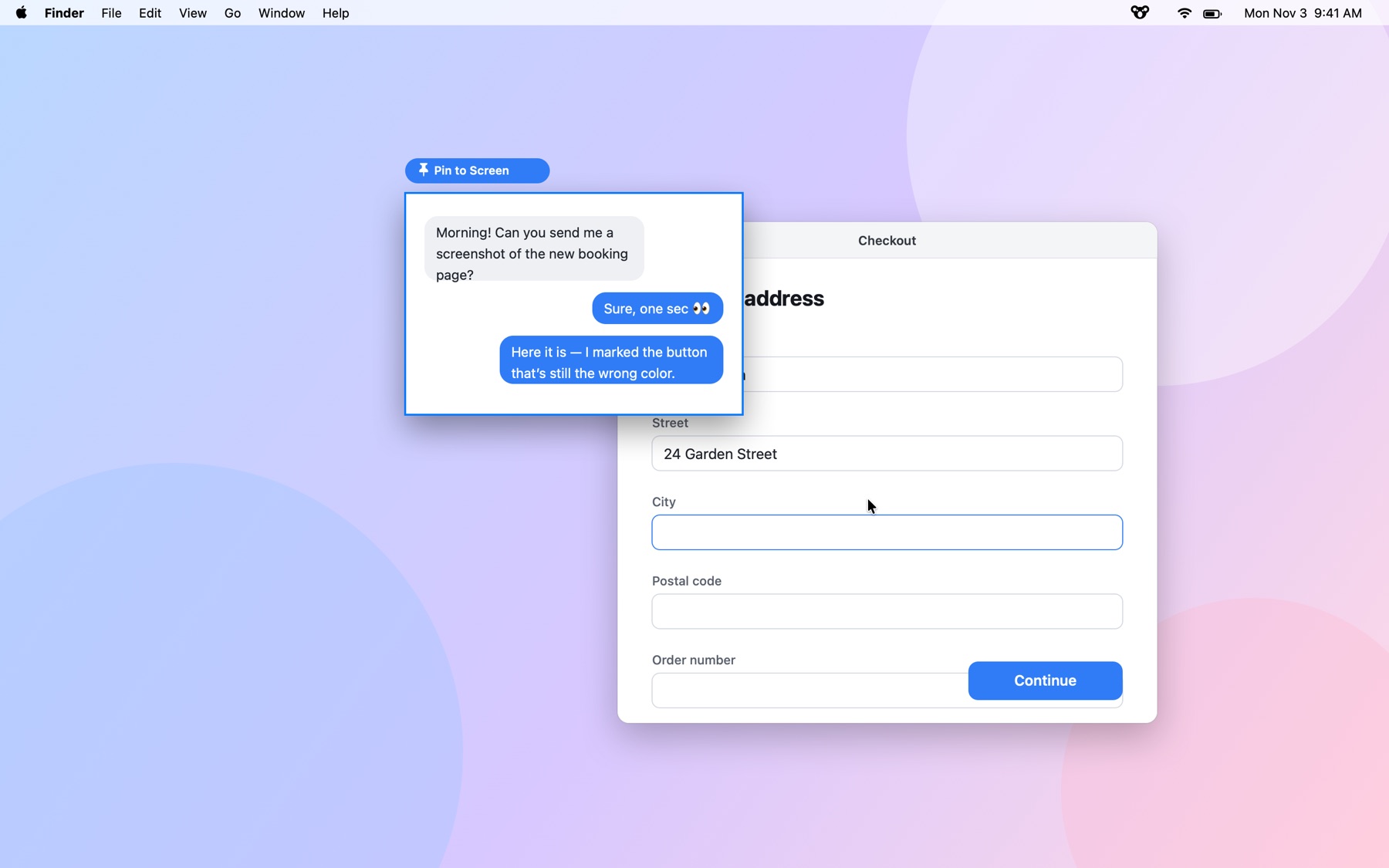
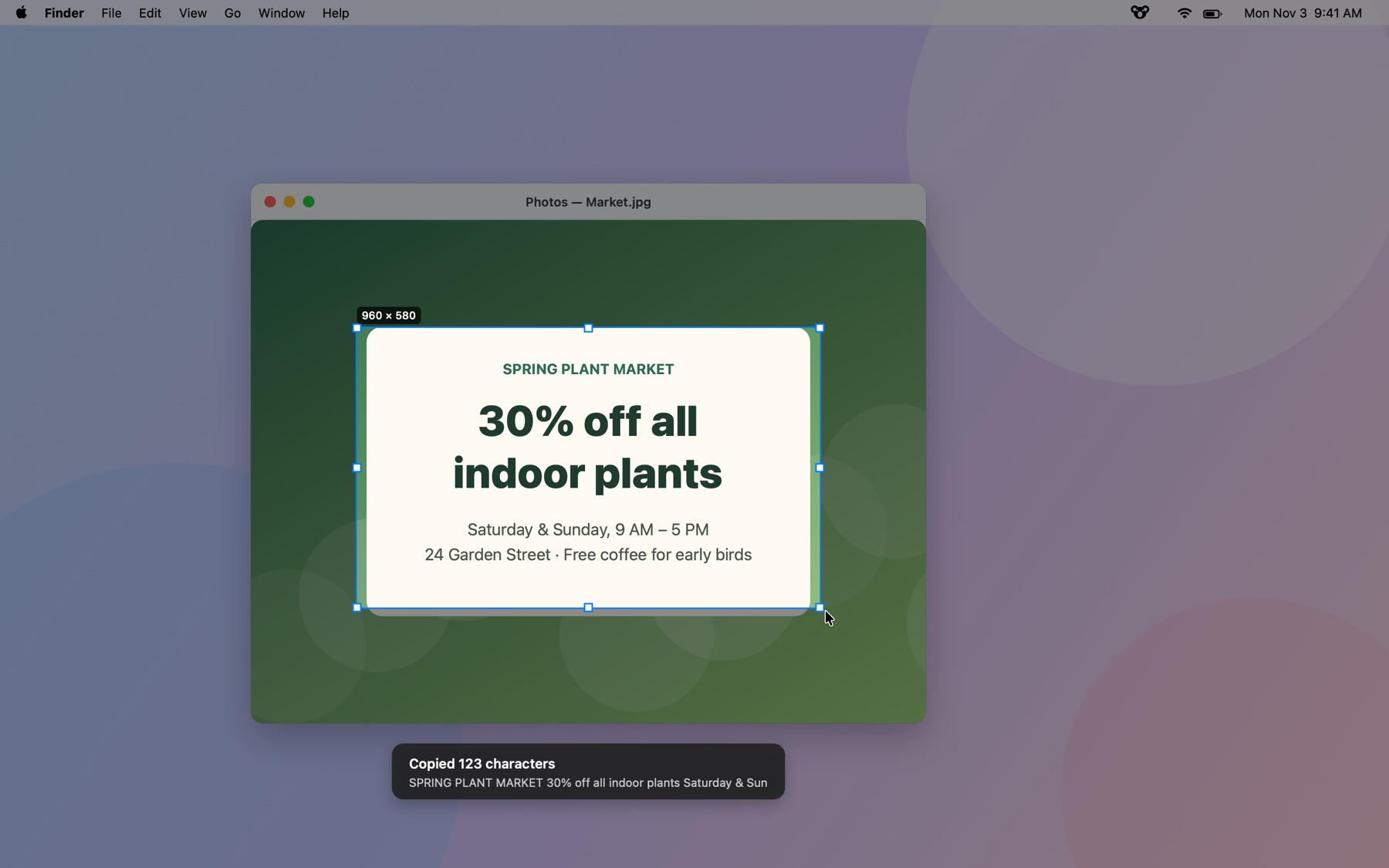
Pin a screenshot on top of everything for reference, or pull text out of any image with on-device OCR.
Your shortcuts, your way
Every shortcut is customizable, and KoalaShot follows your Mac's language.
See it in action
Keyboard shortcuts
| Shortcut | What it does |
|---|---|
| ⇧⌘1 | Capture an area or a window |
| ⇧⌘2 | Record the screen |
| ⇧⌘7 | Scrolling capture |
| ⇧⌘8 | Capture the full screen |
| ⇧⌘9 | Copy text from the screen (OCR) |
| ⇧⌘0 | Capture the last area again |
| Return | Copy and finish |
| 1–8 | Switch markup tools |
Every shortcut can be changed in KoalaShot’s settings.
KoalaShot vs. what’s built into macOS
| Feature | Built into macOS | KoalaShot |
|---|---|---|
| Scrolling capture | No | Yes |
| Blur or pixelate sensitive info | No | Yes |
| Numbered step markers | No | Yes |
| Pin a screenshot on top of other windows | No | Yes |
| Copy text from any part of the screen | Open the image in Preview first | One shortcut |
| Record system audio | No (microphone only) | Yes |
| Save a recording as a GIF | No | Yes |
| Screen freezes while you select | No | Yes |
Getting started
- Download KoalaShot and open the file.
- Drag KoalaShot into your Applications folder, then open it.
- Use it free for 7 days. When you're ready, click Buy Now in the app. It unlocks on its own once you've paid.
Questions
Where do screenshots go?
KoalaShot copies every capture to the clipboard and saves it to Pictures › KoalaShot. You can change the folder, the format (PNG or JPG), and what happens after a capture in Settings.
Can it record my Mac’s internal audio?
Yes. KoalaShot can record system audio with your screen, no extra drivers needed. Recording your microphone at the same time requires macOS 15 or later.
Does it replace the built-in screenshot shortcuts?
No. KoalaShot uses its own shortcuts (⇧⌘1, ⇧⌘2 and so on), so ⇧⌘3, ⇧⌘4 and ⇧⌘5 keep working. You can change any KoalaShot shortcut.
How does the free trial work?
Download KoalaShot and open it. You get every feature for 7 days, with no account and no card. When the trial ends, the app asks you to buy a license. Your files and settings stay put.
Is it a subscription?
No. You pay once and keep using it. Updates are included.
How many computers can I use it on?
Up to 3. You can see which ones are using your license in the app's settings, and remove one yourself when you switch computers, there or on the license page.
Do I need to type in a license key?
Not if you buy from inside the app: it unlocks on its own a few seconds after you pay. If you buy on this website, we'll show your key right after checkout. Paste it into the app and you're set.
I lost my license key.
Find the receipt Paddle emailed you, copy the transaction ID (it starts with txn_), and look it up on the license page or in the app.
Can I get a refund?
Yes, a full refund within 14 days, no questions asked. See our Refund Policy.
Is there a Windows version?
It's on the way. The Mac version comes first.